


When building multiphysics models and simulation apps, the COMSOL API lets you write code to automate workflows, add custom functionality to your apps, and integrate with external tools. The Chatbot window functionality is used to connect directly to a large language model (LLM), such as OpenAI™ GPT, Google Gemini™, Anthropic Claude™, DeepSeek™, or to an on-premises model, allowing you to generate or debug COMSOL API code. For example, it can help convert repetitive tasks into for loops or locate logic errors in a method. You can also use the Chatbot window to query for general modeling advice.
In this blog post, we will walk through a few simple examples that demonstrate how this new functionality can serve as a helpful modeling assistant.
Editor’s note: This blog post was updated on February 27, 2026, to reflect recent updates in the software.
Using the Chatbot Window in Conjunction with the Java Shell Window
The Chatbot window has been primed for convenient use within COMSOL Multiphysics®, providing information specific to modeling and simulation and eliminating the need to copy-paste messages to and from external AI tools. Instead, you can easily attach methods to have them checked for bugs or run API code suggested by the AI model, with results immediately visible in the Model Builder and the Graphics window.
The Java Shell window provides an interactive command prompt for running Java code and can be used, for example, to generate code that updates the current model using the COMSOL API. You can also use the Java Shell window to run code generated in the Chatbot window. We will show you how to do this in the examples below.
To learn more about how to work with the COMSOL API and the Java Shell window, view the “Running Code in the Java Shell Window” section of the Overview of the COMSOL API Learning Center article.
Step 1: Enabling the Chatbot Window
The Chatbot window is available for the Windows® version of COMSOL Multiphysics®. It is included in the platform product and, as of version 6.4, is installed by default, but without an active connection.
Note that:
- To use the Chatbot window, you need to register with an AI provider to obtain an API key. This typically requires a payment plan. Currently, OpenAI™ API-compatible LLMs are supported. These includes OpenAI™, Google, Anthropic™, and DeepSeek™, as well as a range of cloud-based and on-premise models.
- The actual LLM is not installed in COMSOL Multiphysics® — the Chatbot window merely facilitates communication with the LLM.
Instructions on how to install and set up the Chatbot window can be found in this Learning Center article.
Demos: Using the Chatbot Window to…
- Create a Geometry
- Generate Annotations
- Debug Code
- Ask Questions Related to Modeling
- Find Model Setup Mistakes
Create a Geometry
Some basic knowledge of Java can be helpful when working with the COMSOL API; however, this is often not necessary when using the Chatbot window, as it includes functionality that assists with Java syntax and code structure.
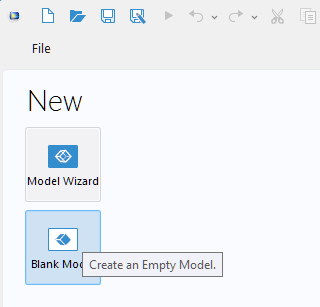
To begin, let’s see how the Chatbot window can help us create a cylinder geometry. Start by clicking the Blank Model button, which allows you to build every aspect of the model from the ground up using the API.
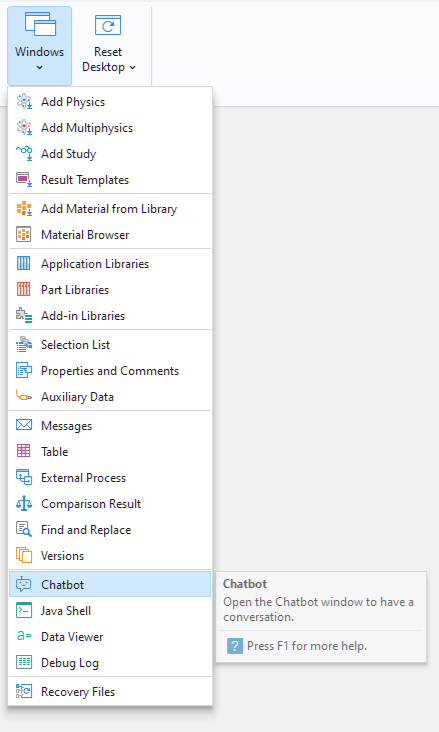
 Next, open the Chatbot window: On the Home tab, go to the Windows menu and select Chatbot.
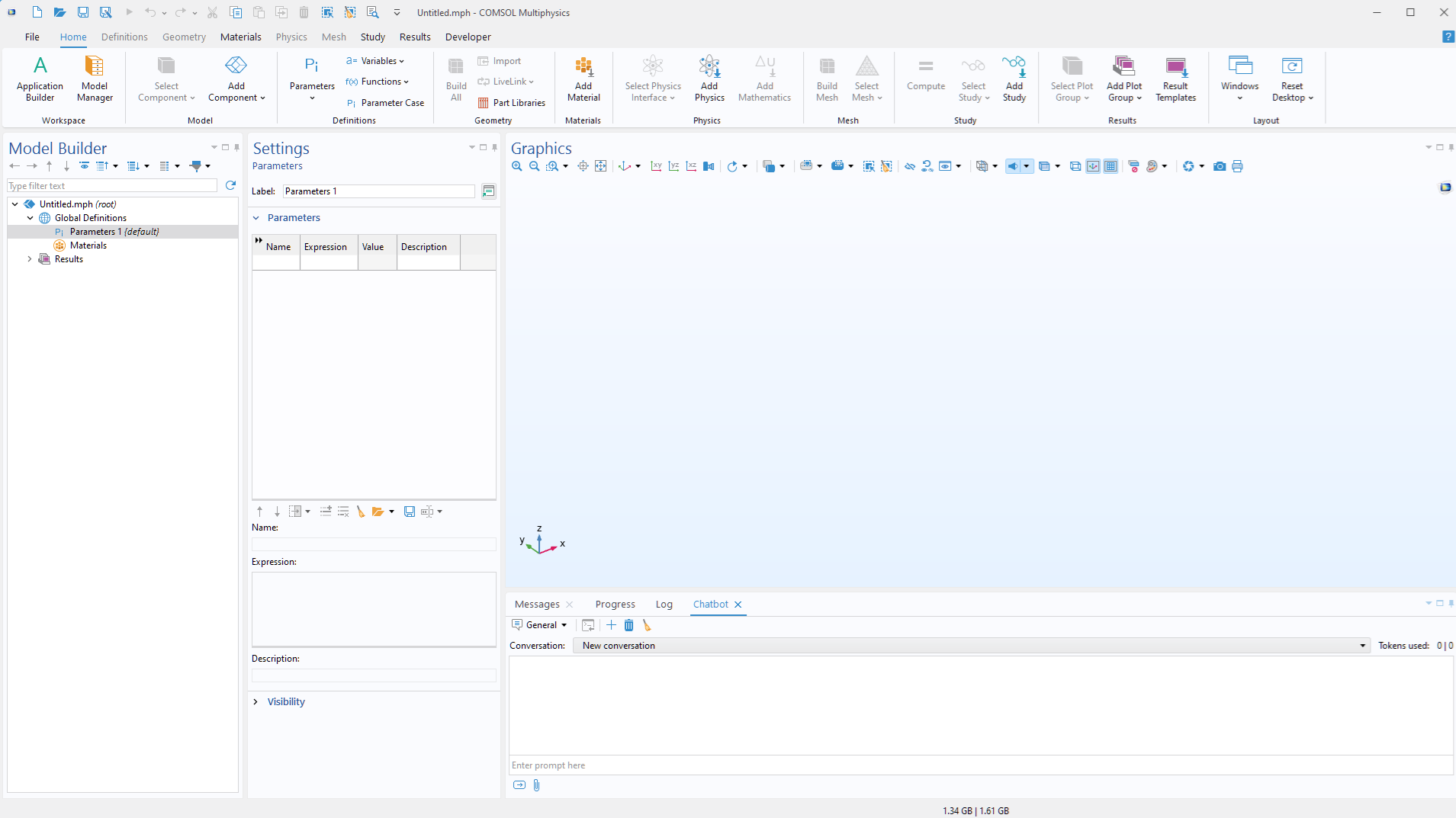
 The Chatbot window will open in the lower-right area of the desktop environment.
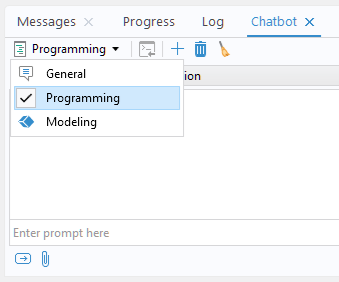
 In the Chatbot window, there are three chat subject options: General, Programming, and Modeling. Selecting a subject provides the chatbot with additional context, which helps improve the quality and relevance of the responses.
For this example, select Programming. This provides the chatbot with programming-focused context, prompting responses that include COMSOL API code.
 Now, type the prompt Create a geometry of a cylinder.
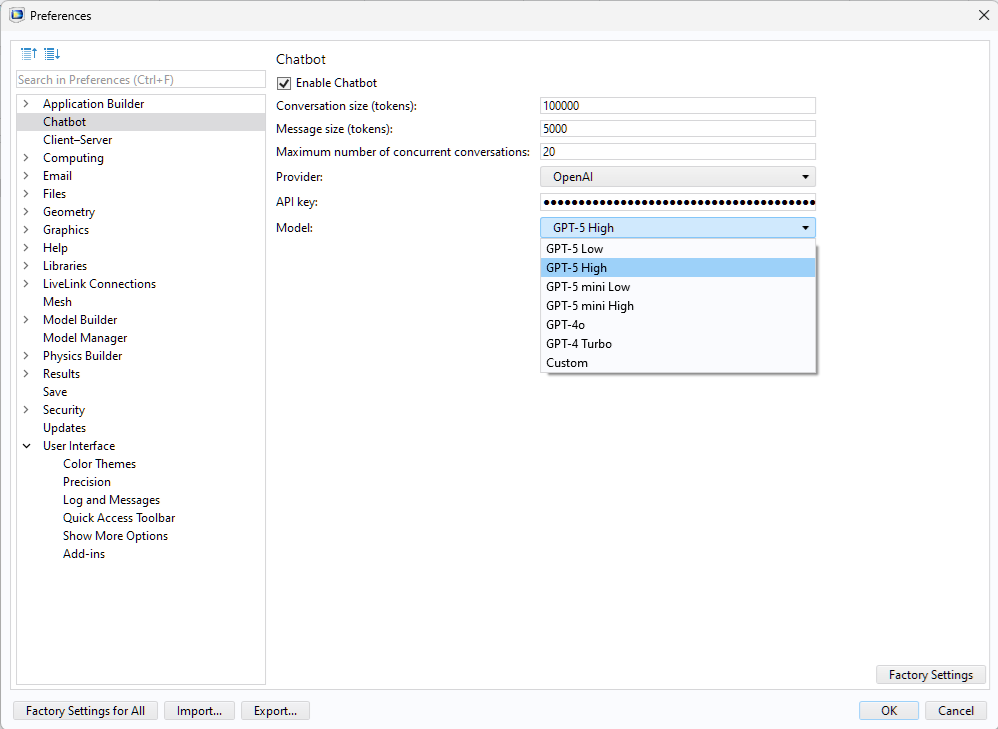
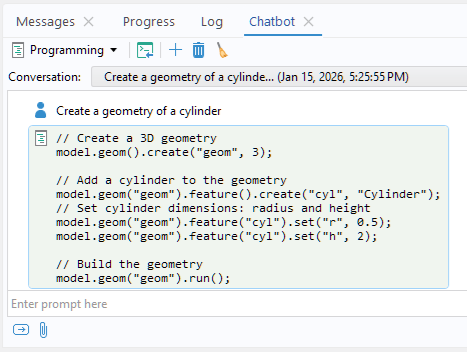 This will generate code for creating a cylinder of some arbitrary radius and height, but it will not run the code. Note that the response time depends on which model is selected in the Preferences window (opened from the File menu). More sophisticated models may result in longer response times.
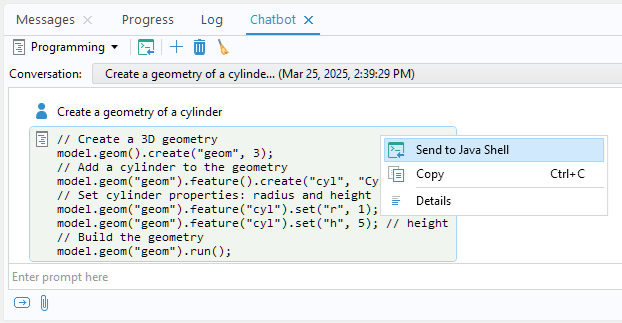
 To run the code, you need to send it to the Java Shell window. Right-click the block of code and select Send to Java Shell.
 The Java Shell window will open with a copy of the same block of code.
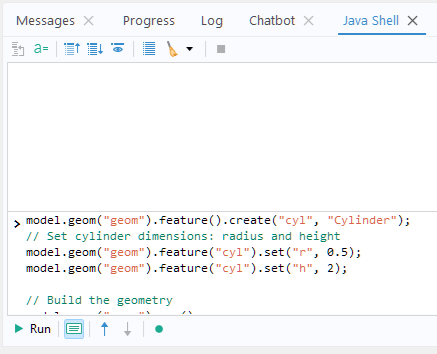 Click the Run button at the bottom of the Java Shell window to generate the cylinder.
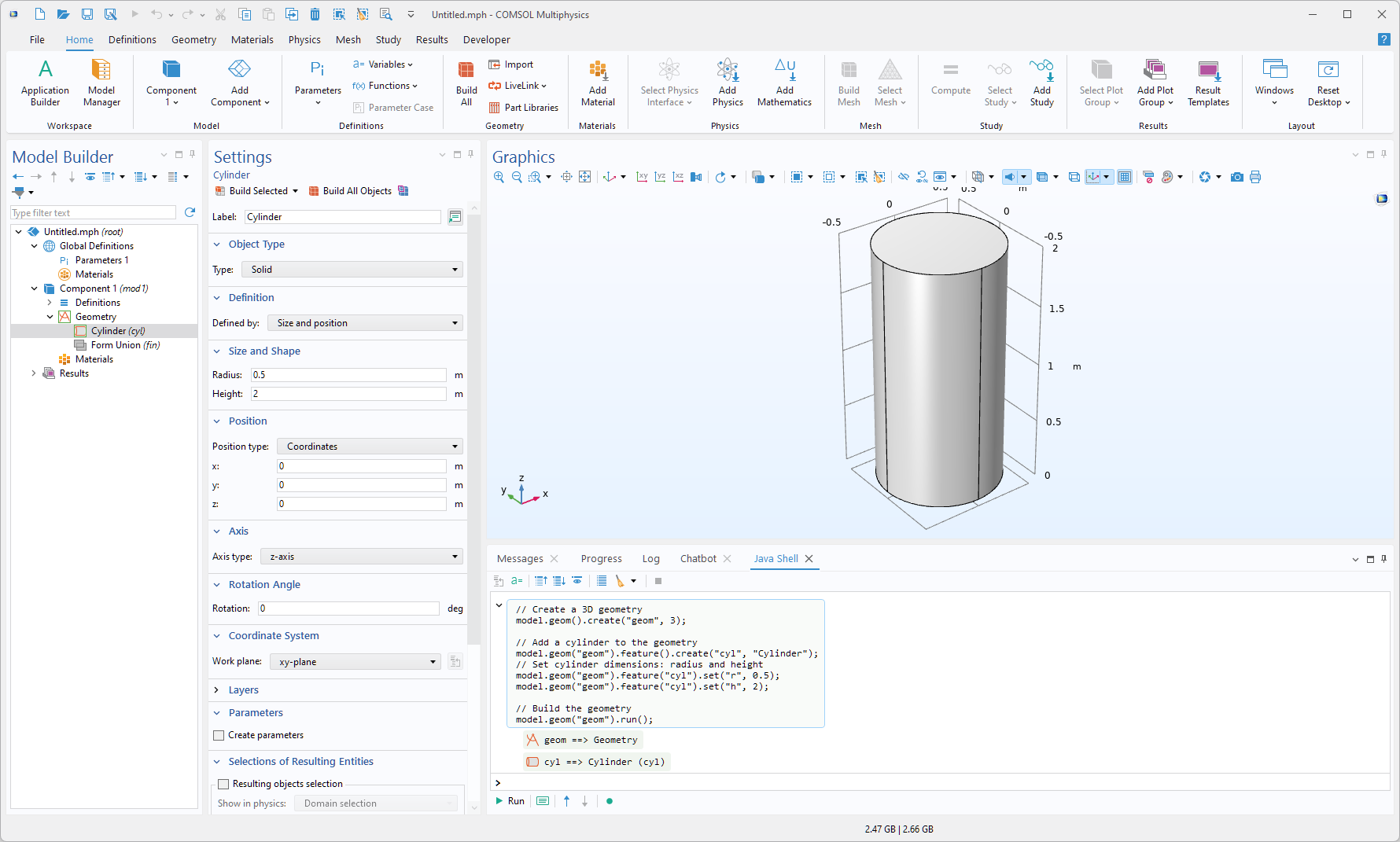
In the example shown here, the following code was generated:
// Create a 3D geometry
model.geom().create("geom", 3);
// Add a cylinder to the geometry
model.geom("geom").feature().create("cyl", "Cylinder");
// Set cylinder properties: radius and height
model.geom("geom").feature("cyl").set("r", 0.5); // radius
model.geom("geom").feature("cyl").set("h", 2);
// Build the geometry
model.geom("geom").run();
However, keep in mind that the Chatbot window may produce slightly different variations of the code each time due to a small degree of randomness in its responses.
Generate Annotations
The AI model that the chatbot functionality communicates with does not understand all aspects of the COMSOL API. However, by using the Record Code or Record Method functionality in the Application Builder, we can guide it to produce useful code suggestions. In the following example, you will learn how to add annotations to a model and then build on this by asking the Chatbot window for help. To get started, open the Pacemaker Electrode tutorial model from the Application Libraries, under COMSOL Multiphysics > Electromagnetics.
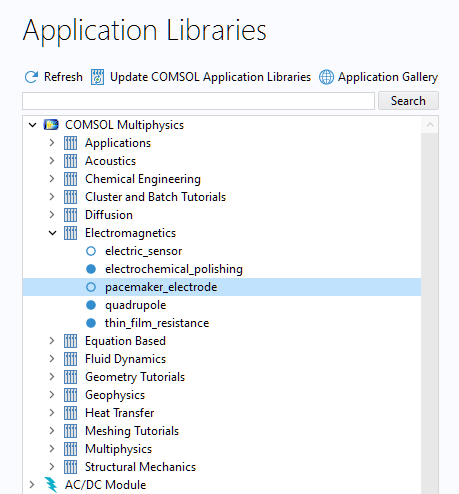 If the model has not yet been solved, click Compute. The computation will take a few seconds.
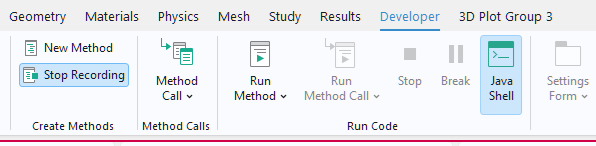
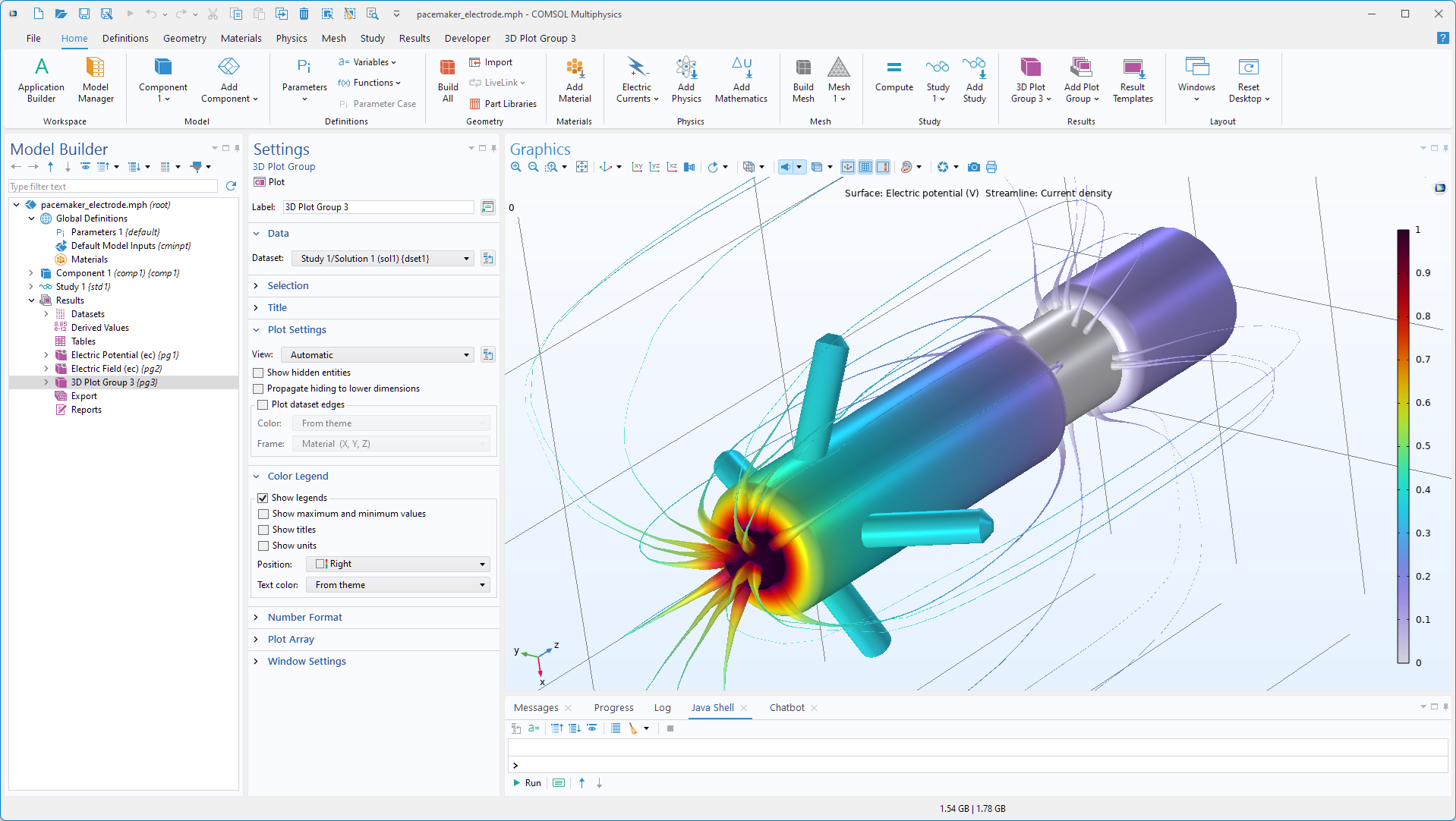 Next, let’s use the built-in code recording functionality to learn how to add an annotation. On the ribbon, go to the Developer tab and click Record Method to begin recording.
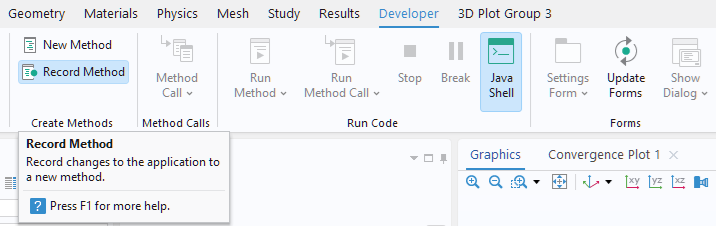 You will be prompted to store the recording as method1, which is fine for our purposes; you can rename this method if you wish. The Model Builder will now be outlined in red to indicate that a recording is in progress.
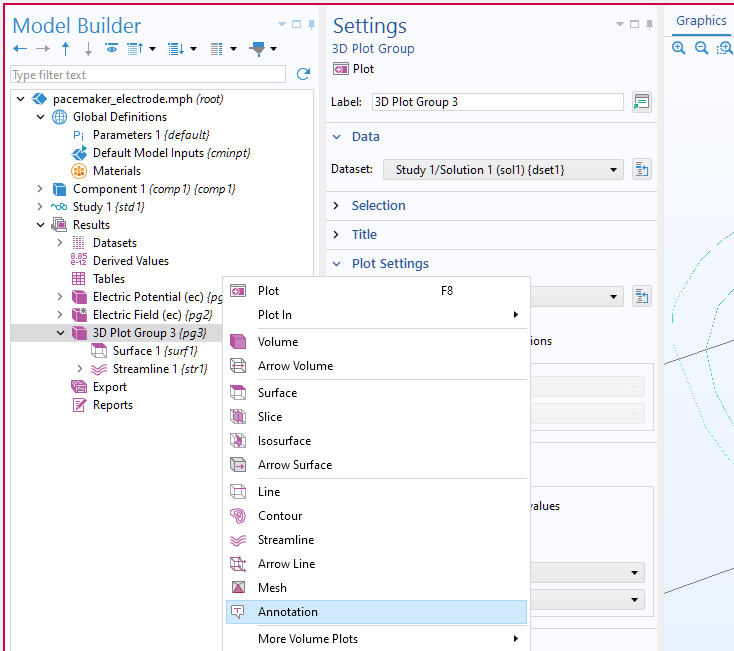
In the model tree, right-click 3D Plot Group 3 and select Annotation.
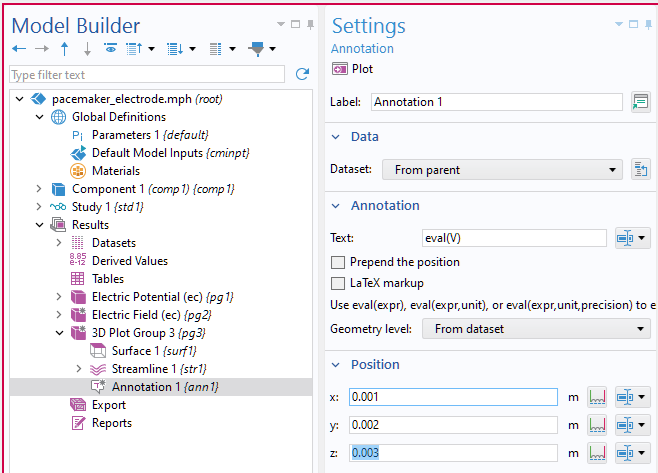
 In the Settings window for the Annotation node, in the Text field, type eval(V). This will evaluate and display the local value of the electric potential field. Next, for the Position settings, enter 0.001, 0.002, 0.003 for the x-, y-, and z-coordinates, respectively.
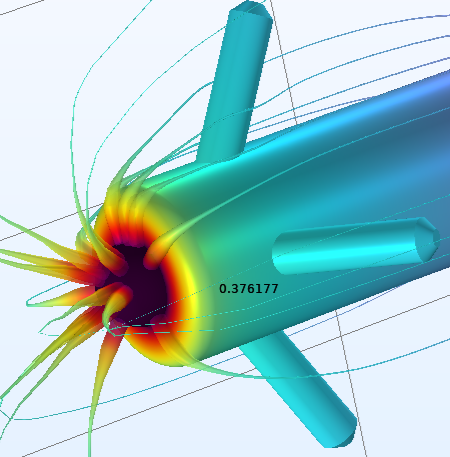
 Click the Plot button to create the annotation.
 On the Developer tab, click Stop Recording.
 Now, click the Application Builder button and double-click the method1 node in the tree. This will display the recorded code in the Method Editor.
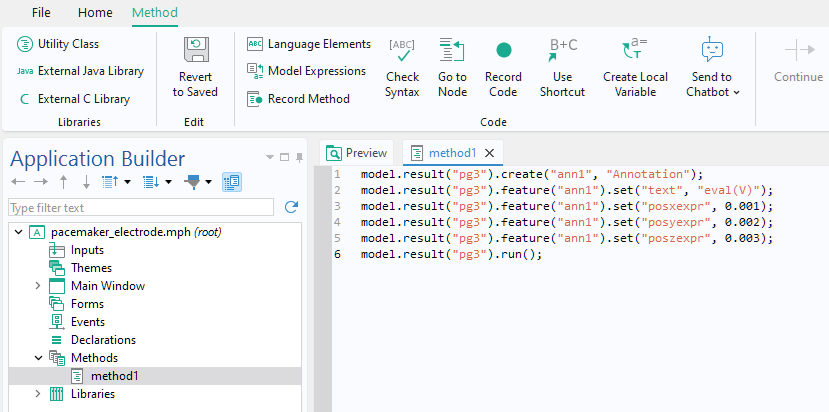 Copy this code and switch back to the Model Builder.
Before using the Chatbot window to automatically create Annotation nodes, you will need to delete the Annotation node that you just generated to avoid collisions. In the model tree, right-click the Annotation node and select Delete.
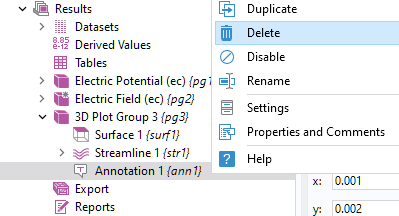 Now, in the Chatbot window, select the Programming subject option and then type the following instructions, pasting in the code you copied from the Method Editor:
This is how you create an annotation in COMSOL Multiphysics:
model.result(“pg3”).create(“ann1”, “Annotation”);
model.result(“pg3”).feature(“ann1”).set(“posxexpr”, 0.001);
model.result(“pg3”).feature(“ann1”).set(“posyexpr”, 0.002);
model.result(“pg3”).feature(“ann1”).set(“poszexpr”, 0.003);
model.result(“pg3”).feature(“ann1”).set(“text”, “eval(V)”);
Can you create a for loop that places these annotations at 10 locations along a line from (x,y,z)=(0,0,-0.02) to (x,y,z)=(0,0,0).
Press Enter or click the Submit button.
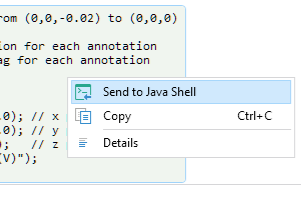
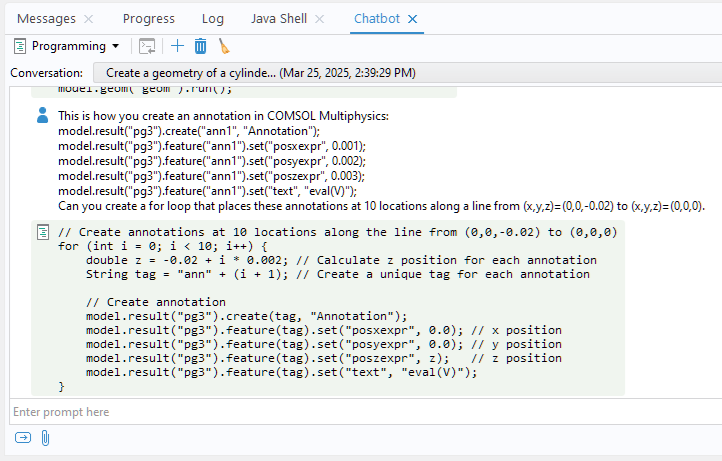 Right-click the area with the generated code and select Send to Java Shell.
 In the Java Shell window, click Run to apply the annotations.
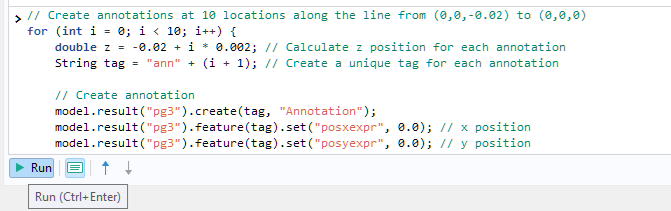
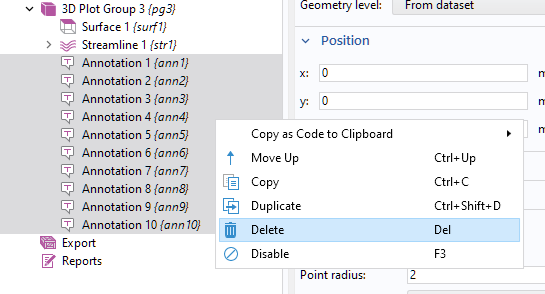
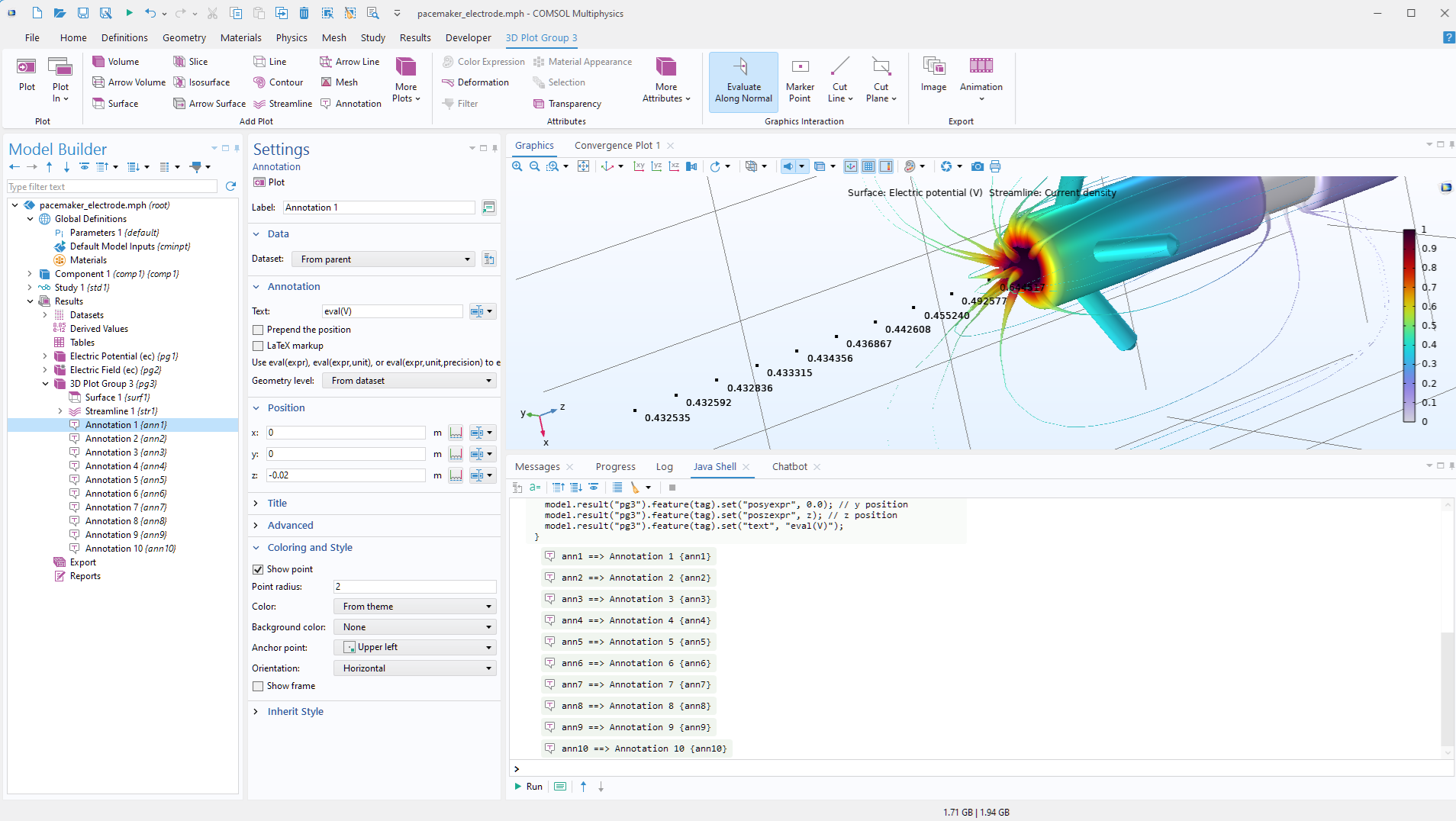 Now, let’s try something a bit more advanced. Start by deleting all of the generated Annotation nodes. You can do this by holding Shift to select multiple nodes, then right-clicking and choosing Delete from the context menu.
 Go to the Chatbot window and enter the prompt:
Instead, create annotations in a helix pattern centered along the same line with helix radius 0.0025.
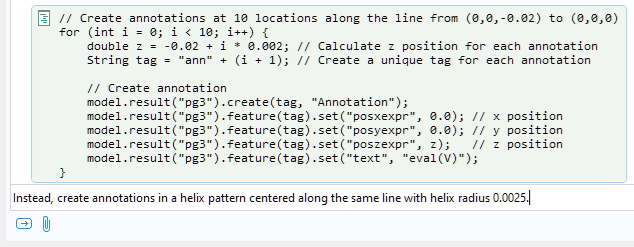 Click the Submit button or press Enter.
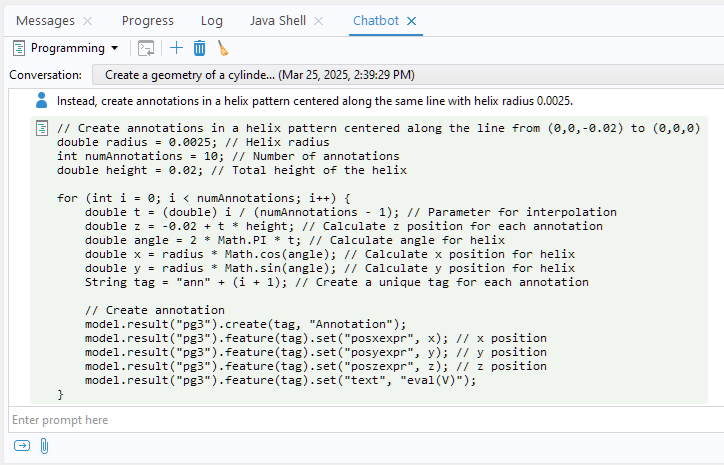 Now, repeat the procedure from before. Right-click the generated code, send it to the Java Shell window, and click Run to plot the annotations.
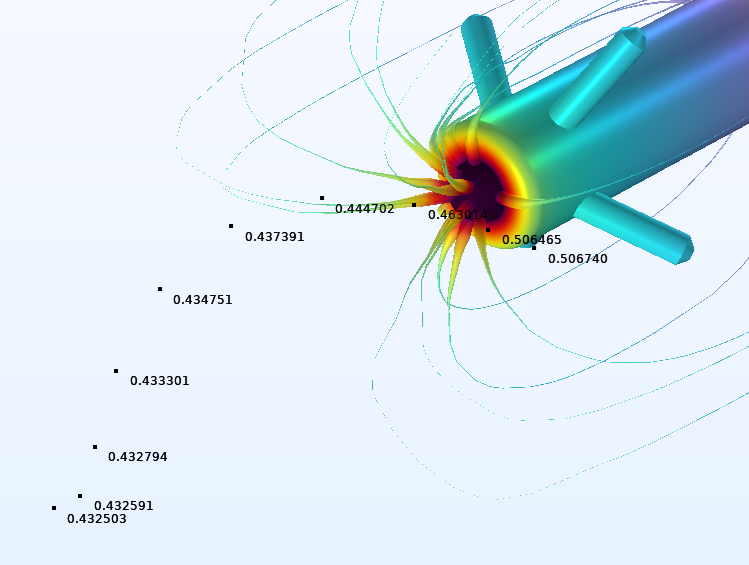 Next, let’s increase the density of the annotation pattern. First, delete the 10 Annotation nodes that were created. Then, use the following prompt in the Chatbot window:
Now, make the frequency twice as high and create 20 annotations.
Once again, right-click the generated code and send it to the Java Shell window, which will appear as follows.
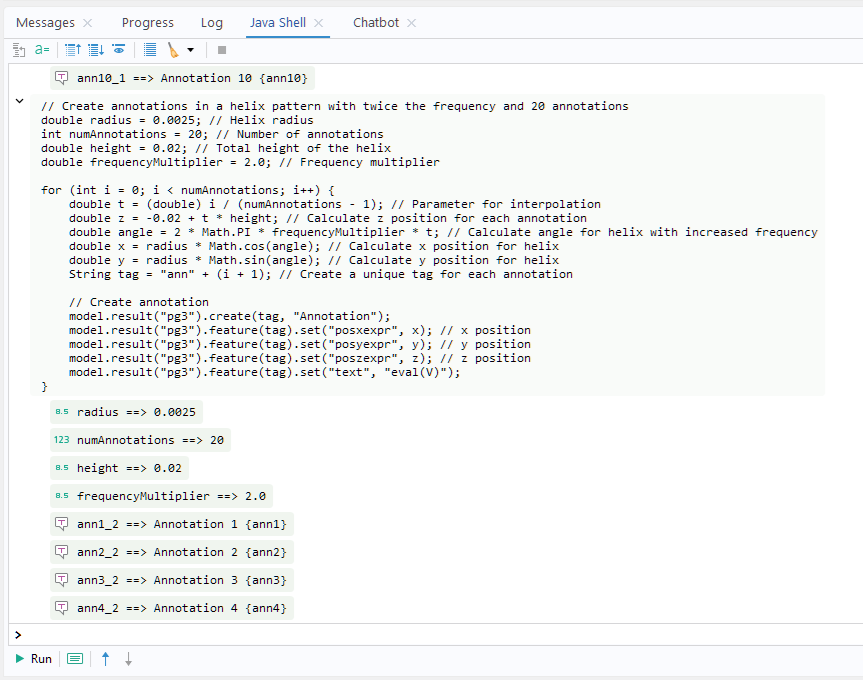 Click Run to plot the annotations as before.
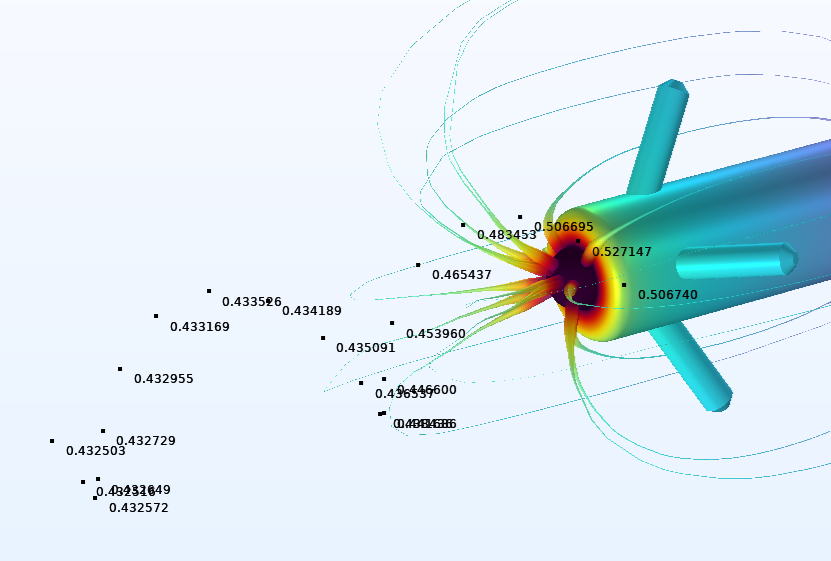 These examples gives you an insight into how the chatbot functionality can be used to solve sophisticated automation tasks very quickly. By using a combination of Record Method (or Record Code) and Chatbot window prompts, you can guide the responses from the chatbot to quickly build up the complexity of your code. For repeated use of the same code, instead of using the Java Shell window, you can enter the code in a method in the Method Editor. Also note that we could have recorded the deletion of the Annotation nodes and automated that part of the process as well.
Debug Code
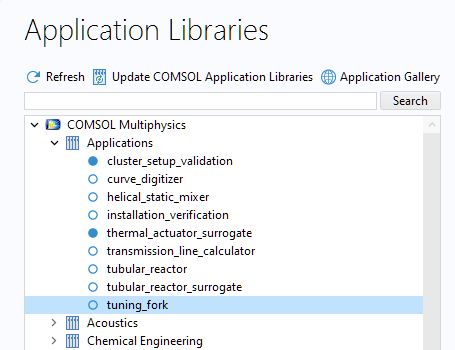
Another use of the chatbot functionality is to find subtle bugs in your code that go beyond simple syntax errors. To illustrate this, let’s use the Tuning Fork app from the Application Libraries, found under COMSOL Multiphysics > Applications. This tutorial app does not require any add-on products.
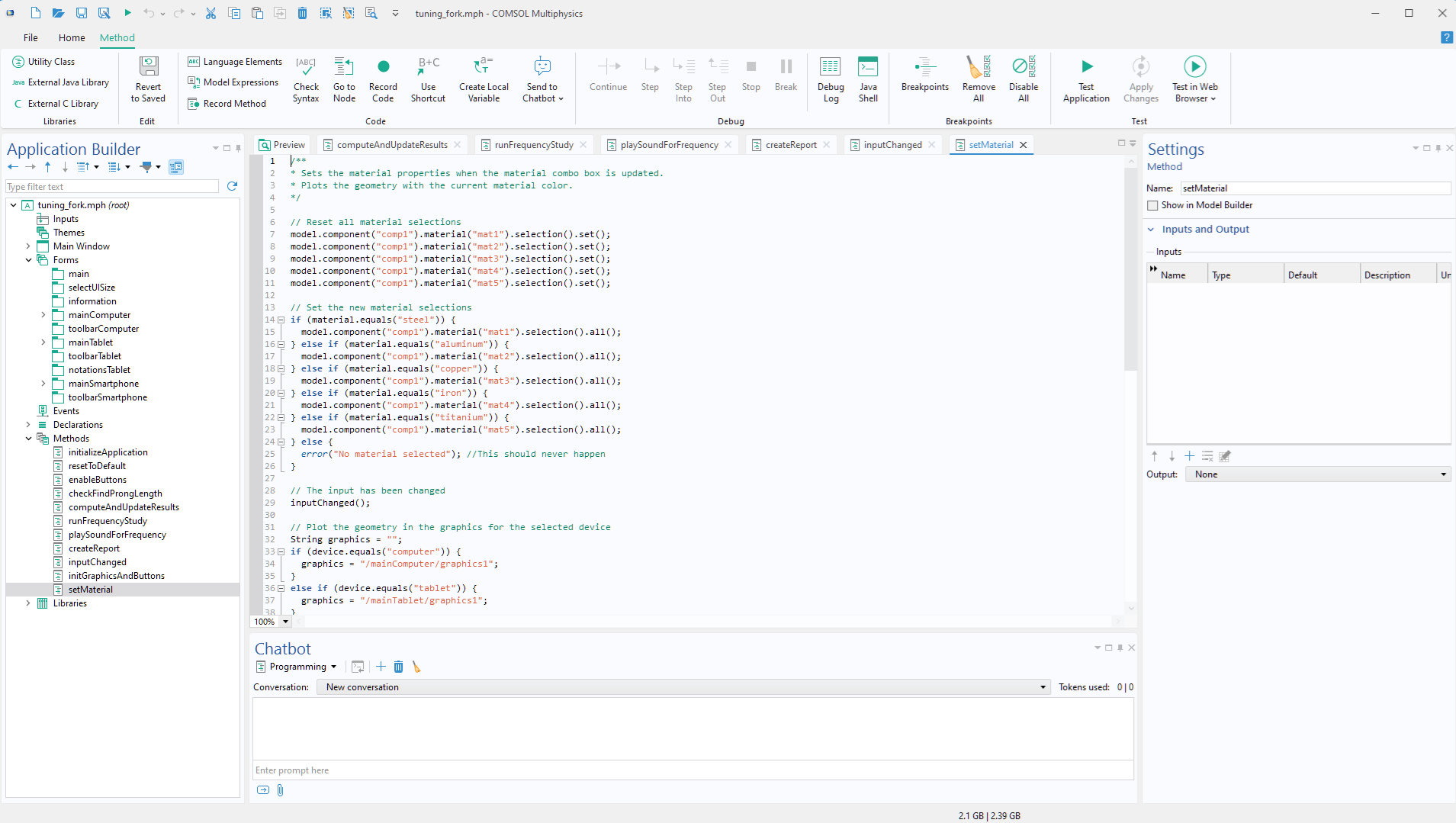
 Go to the Application Builder and, in the Methods branch, double-click the method setMaterial.
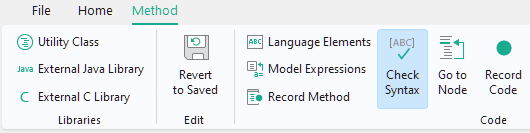
 To find syntax errors, you can click the Check Syntax button on the Method tab. This functionality does not utilize the Chatbot window but is a compiler-level check; using the built-in Java compiler, the Method Editor automatically compiles a method when, for example, you leave a window or save your app or model.
 To find bugs in the code that are not related to syntax, the Chatbot window can be of help.
Let’s introduce a bug into the code to demonstrate how this functionality can be used. In the method setMaterial, replace the reference to the material mat4 with mat3. Now, when the user selects the material iron, with the tag “mat4”, the app will use the material properties for copper, with the tag “mat3”, instead.
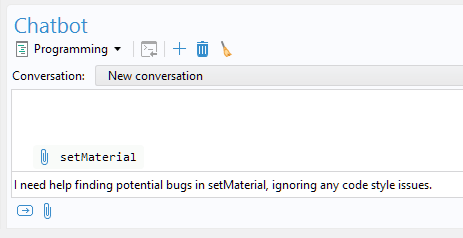
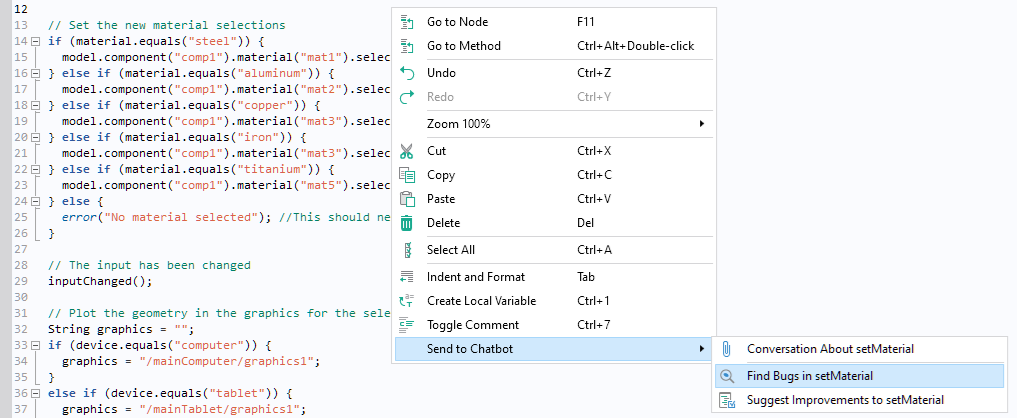 The method is now attached to the Chatbot window with the predefined prompt I need help finding potential bugs in setMaterial, ignoring any code style issues. (The other two options in the Send to Chatbot submenu, Conversation About setMaterial and Suggest Improvements to setMaterial, have different predefined prompts.)
Press Enter or click the Submit button.
 The Chatbot window finds the error, outputting the following message:
**Duplicate Material Selection for Copper and Iron:**
– Both “copper” and “iron” are setting the selection for `mat3`. This might be intentional, but if different materials are expected, this is a bug.
It also remarks on two other potential problems. However, in this case, these are false positives, as the Chatbot window was not given all the information about the other methods and functionality of the app.
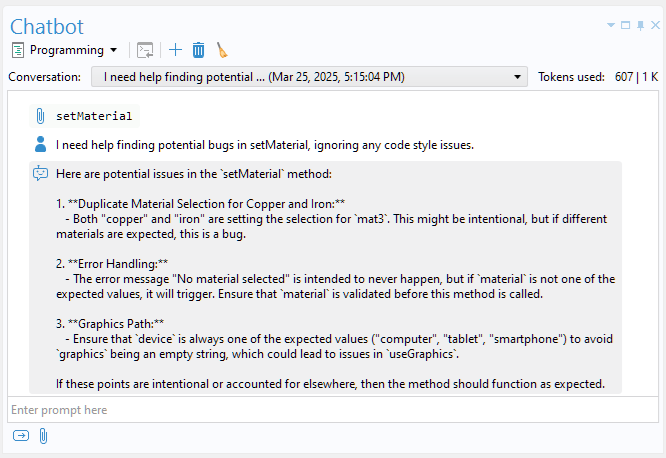 In this case, the bug was relatively easy to spot without the help of the Chatbot window. However, imagine if the app supported 40 or 50 materials instead of just five; in such cases, when working with longer code blocks, using the Chatbot window can greatly accelerate the debugging process.
You can also ask for modeling tips in the Chatbot window. Let’s say we are new to the area of electrostatics modeling and that we are interested in which boundary conditions are important for such models. For this purpose, in the Chatbot window, select the Modeling subject option. Enter the prompt:
Which are some of the most important boundary conditions for electrostatics?
The Chatbot window gives a pretty good answer. However, note that it mentions the “Mixed Boundary Condition” type. Although this boundary condition is available in the COMSOL® software, it requires the AC/DC Module and has a different name: Distributed Capacitance. Again, the answers may vary depending on which LLM is used.
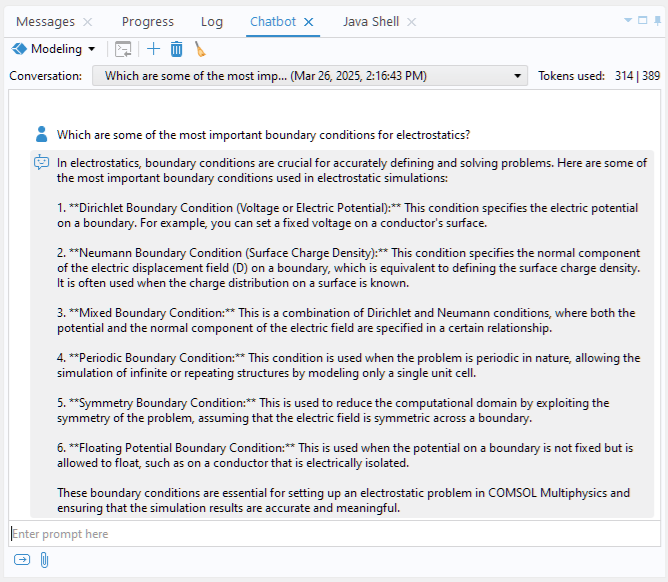 In general, for introductory modeling questions, the Chatbot window can provide a helpful starting point. However, for more advanced topics, it is advisable to also consult the COMSOL Documentation (also available in the software via the Help window) and relevant textbooks on the subject. If you select the General subject option instead of Programming or Modeling, you can submit prompts on any topic, including those not related to COMSOL Multiphysics®.
As of COMSOL Multiphysics® version 6.4, the Chatbot window functionality has access to the COMSOL documentation and consults it for answers. This functionality is automatically enabled for the OpenAI GPT models and also available for any LLM that supports the _Tool calling_ functionality that can be enabled in the Preferences window for the OpenAI API compatible option.
Find Model Setup Mistakes
You can also use the Chatbot window to find simple mistakes in your modeling setup. While the chatbot functionality doesn’t understand all aspects of modeling and simulation, it can still be helpful; for example, it can identify typos in expressions used in the Model Builder.
To try this out, open the Laser Heating of a Silicon Wafer tutorial model from the Application Libraries under COMSOL Multiphysics > Heat Transfer. This model, which demonstrates a transient simulation of a laser moving over a silicon wafer, does not require any add-on products.
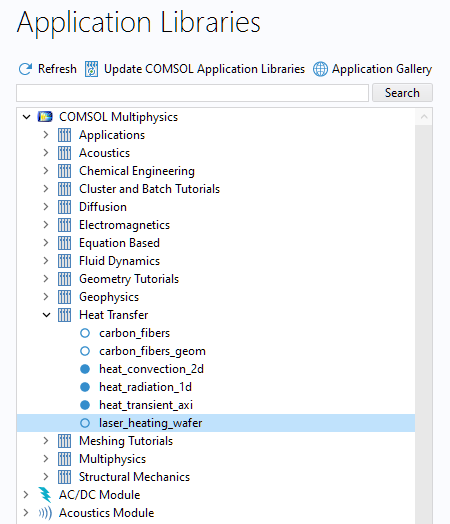 If the model has not already been solved, you can solve it after opening it.
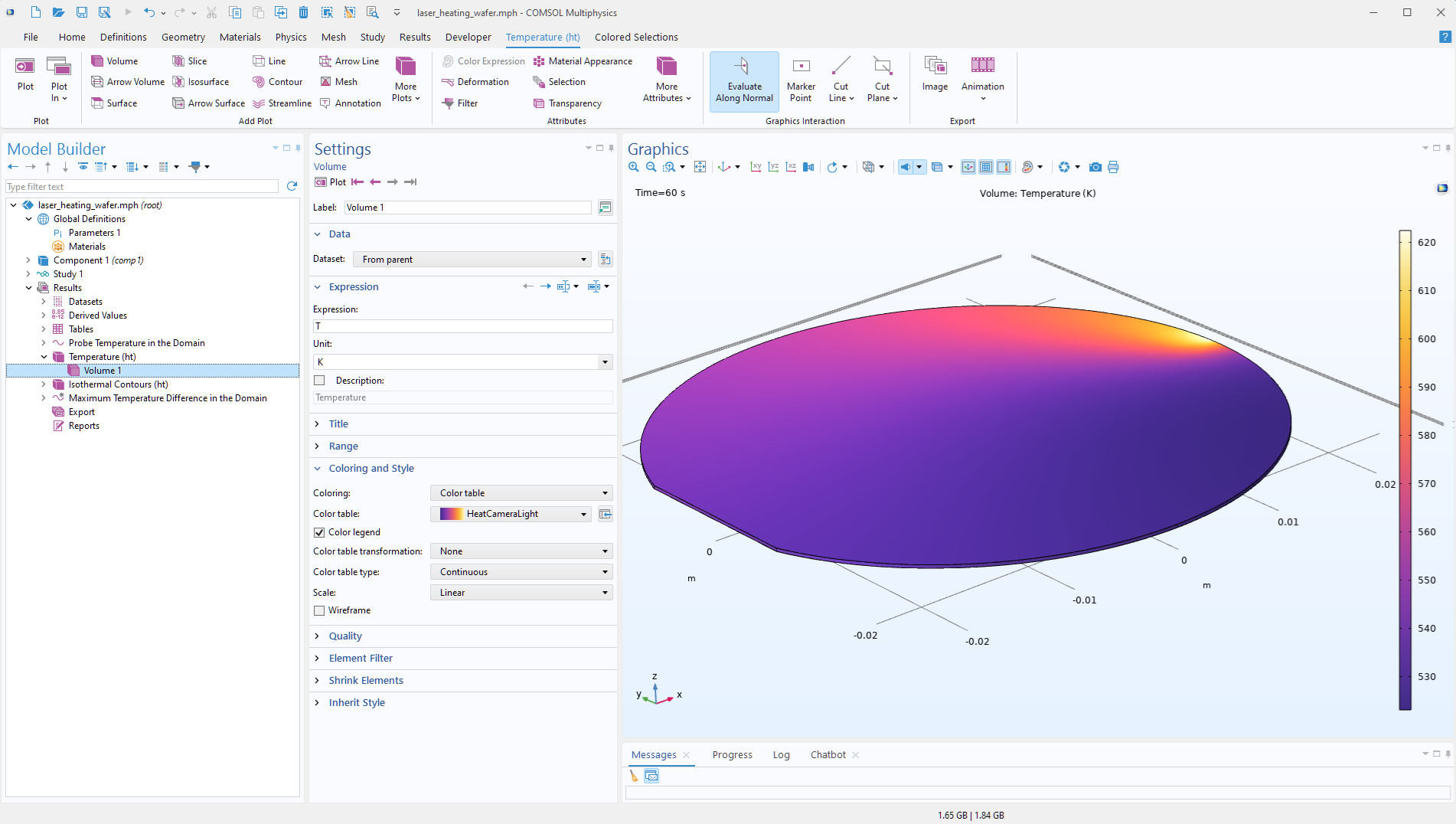 Let’s now introduce an artificial typo into one of the variable definitions. The expression that defines the distance from the focal point is correctly written as:
sqrt((x-x_focus)^2+(y-y_focus)^2)
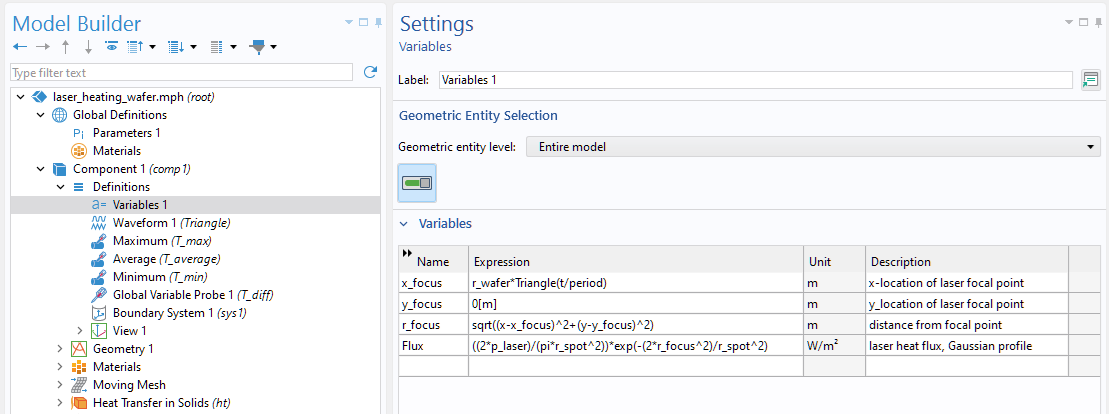 We will change this to the following incorrect expression, where the second term mistakenly uses x_focus instead of y_focus:
sqrt((x-x_focus)^2+(y-x_focus)^2)
The following steps differ slightly between versions 6.3 and 6.4.
Version 6.4
Right-click the root node, laser_heating_wafer.mph (root), in the Model Builder tree and select Send to Chatbot > Model History.
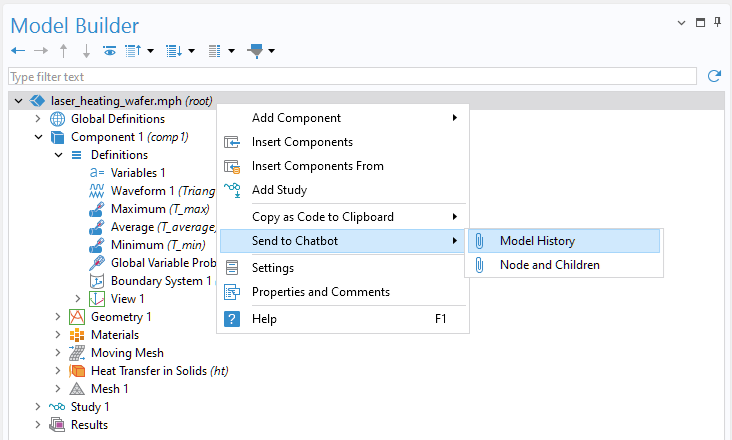 When prompted with the question Compact model history before sending to Chatbot?, select Yes. This removes redundant information from the model history, such as steps from earlier modeling mistakes that were later corrected.
The model history is now added to the Chatbot prompt as an attachment.
Now, enter the prompt Can you find any errors in this model? and click the Submit (Enter) button.
Again, the output may vary, but the following is the output from a typical session where the main issue is listed as item number 1:
Yes — here are the main issues I see, with suggested fixes.
Definite errors
– Distance to the laser center (typo): You defined
r_focus = sqrt((x – x_focus)^2 + (y – x_focus)^2)
The second term should use y_focus:
r_focus = sqrt((x – x_focus)^2 + (y – y_focus)^2)
…
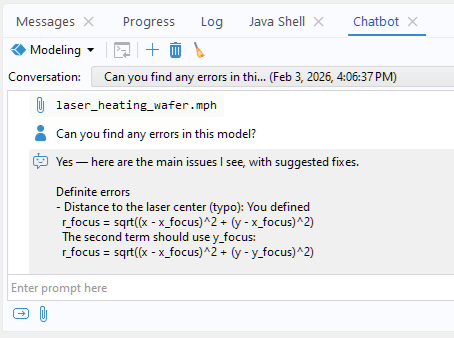 The remaining suggestions in the output are not valid and result from a lack of deeper understanding of the model details. By saving the model PDF as a text file and attaching it to the prompt, the Chatbot is given more context and can provide a more precise answer. In general, the more context you provide about the model, the more likely you are to receive a relevant answer.
The figure below shows an example of how such a conversation may appear:
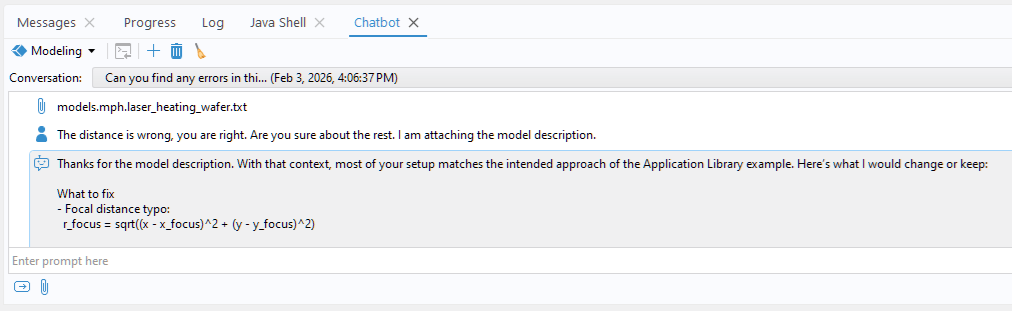 You can also submit parts of the Model Builder tree as an attachment and then ask specific questions about these parts of the model. To do so, right-click a node in the tree and select Send to Chatbot. You can submit either the selected node only or the node together with all of its child nodes.
Version 6.3
In version 6.3, follow these steps:
Save the file by selecting Save As from the File menu and choosing the Model File for Java (.java) option.
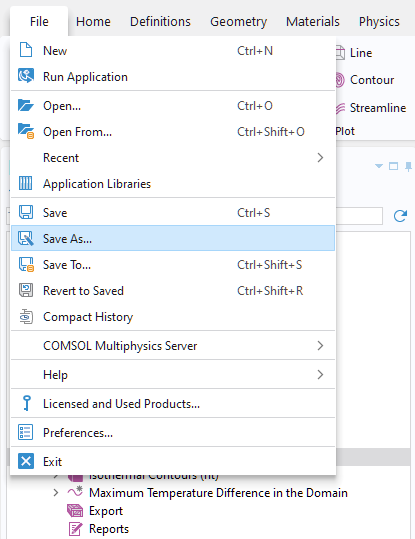
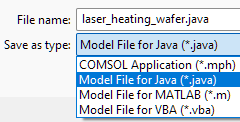 This will create a text file with a .java extension, which can be compiled into a Java .class file for use as a standalone Java component. This approach runs COMSOL Multiphysics® without the COMSOL Desktop® user interface. The .java file contains the entire model setup through API code. In this case, however, we will use the file solely to identify potential issues in the model setup. (Note that using this functionality is unrelated to compiling apps with COMSOL Compiler™.)
Open the .java file in any text editor, copy the code, and paste it into the Chatbot window, using a prompt such as:
Can you find any errors in this model:
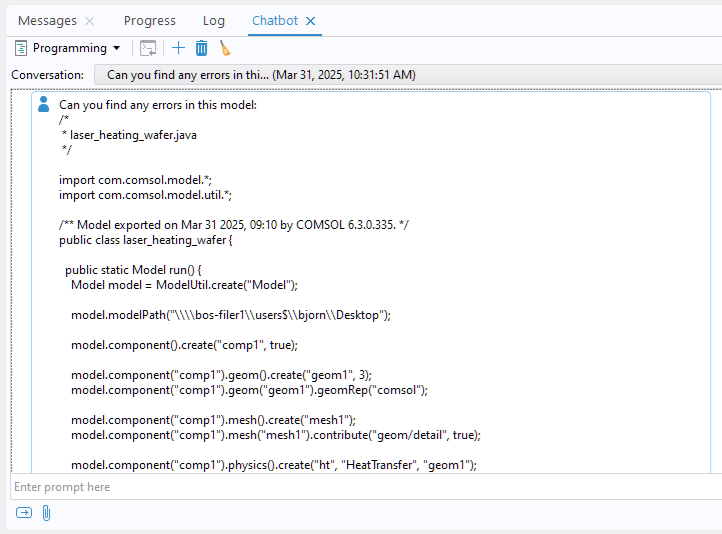 Indeed, the first issue the Chatbot window points out is the typo we just introduced. It says:
Here are a few potential issues in the provided code:
1. **Duplicate Variable Definition**: The variable `r_focus` is defined twice with different expressions. The first definition is correct:
“`java
model.component(“comp1”).variable(“var1”).set(“r_focus”, “sqrt((x-x_focus)^2+(y-y_focus)^2)”);
“`
The second definition at the end of the method seems incorrect:
“`java
model.component(“comp1”).variable(“var1”).set(“r_focus”, “sqrt((x-x_focus)^2+(y-x_focus)^2)”);
“`
Ensure you use the correct expression for `r_focus`.
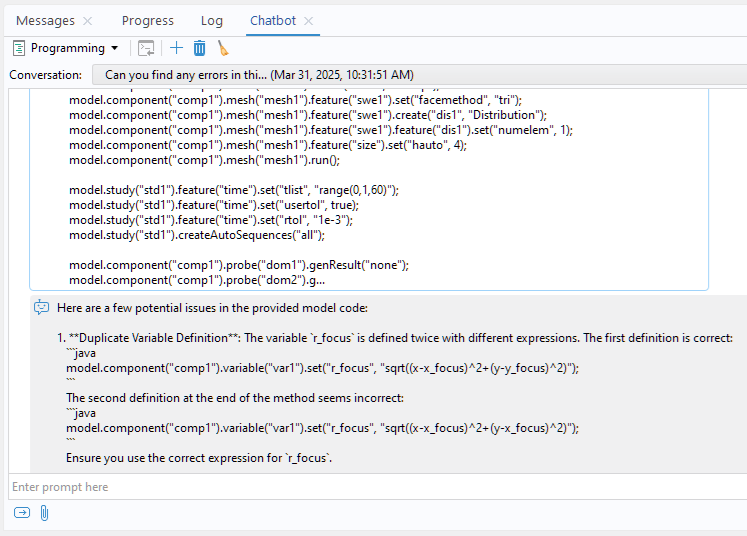 This kind of debugging can be useful for catching small mistakes in your model setup. For more complex models, you may want to remove redundancies and simplify the code before saving the model as a .java file by compacting the history so that the file only includes the current model settings (File > Compact History).
Next Step
In this blog post, we highlighted the capabilities of the Chatbot window functionality using the Pacemaker Electrode tutorial model. If you want to explore file used to create the pacemaker electrode example yourself, click the button below.
Further Reading
Want to learn more about the Application Builder and COMSOL API? Check out their documentation:
- Get an introduction to using the Application Builder
- Learn more about programming using the COMSOL API
Anthropic and Claude are trademarks of Anthropic, PBC. DeepSeek is a trademark of Delson Group Inc. Google Gemini is a trademark of Google LLC. Microsoft and Azure are trademarks of the Microsoft group of companies. OpenAI is a trademark of OpenAI, Inc. Oracle and Java are registered trademarks of Oracle and/or its affiliates.





Comments (0)